
The MTT library is designed to work together with Process Modeling. This article explains how to build and run simulations on MTT layouts — feeding pallets, setting conveyor speeds, routing through transfers, adding workstations, and handling reverse-flow (InOut) sides.
Prerequisites
Product Feeder
The Product Feeder is available in the eCatalog under both MTT and Simulation Toolbox.
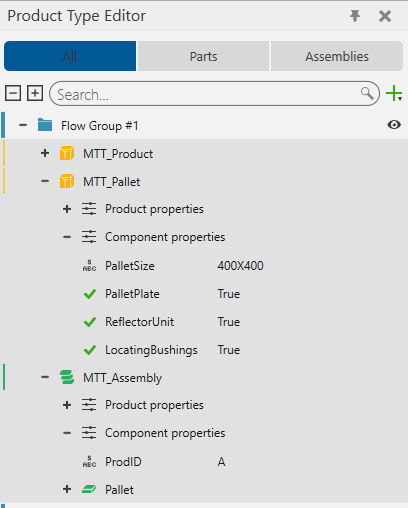
By default the Product Feeder feeds boxes, not pallets. After connecting it to an MTT conveyor, click Product → Create New Pallet Assembly to generate an assembly containing a pallet and a box suitable for MTT simulation.
Notes:
- The assembly is a snapshot. Later changes to the conveyor will not update it automatically - regenerate the assembly, or edit the pallet/product manually.
- To route pallets through transfers, set the ProdID on the assembly. It lives under Component Properties on the top node of the assembly.
Setting conveyor speed
Each level of an MTT Module exposes a property LevelX/ProcessSpeed [m/min] that sets the speed of all conveyors and transfers on that level.
- This does not propagate to conveyors on satellite frames.
- A conveyor connected to a satellite frame keeps its own editable Process/Speed property; set it there.
Acceleration and deceleration are set automatically from the speed.
Routing in Transfers
A transfer's routing properties become visible based on how many sides are configured as inputs and outputs.
When there are multiple outputs - Process/TransferMode
Visible when a transfer has more than one possible output side.
Two modes:
TransferBasedOnID — route by product identity.
- Uses LeftTransferID and/or RightTransferID.
- Any pallet whose ProdID appears in the list is diverted that way; pallets matching neither list continue through the main output.
- Each property accepts multiple IDs, separated by commas.
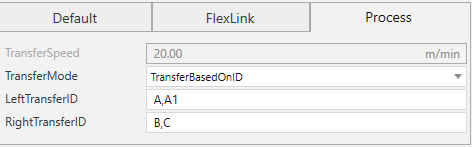
- Example (M2O transfer): with LeftTransferID = A, A1 and RightTransferID = B, C, pallets with ProdID A or A1 go left, B or C go right, and anything else passes straight through.
- TransferBasedOnProbability - route by weighted random draw.
- Uses LeftTransferFrequency, RightTransferFrequency, and/or MainTransferFrequency.
- Each incoming pallet is diverted to a random side, weighted by these values.
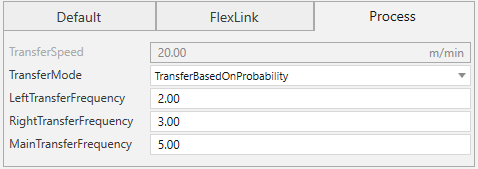
- Example (M2O transfer): with weights 2 / 3 / 5, 20% of pallets go left, 30% right, and 50% continue straight.
When there are multiple inputs - Process/Priority
Visible when a transfer has more than one possible input side. Options are FIFO, Main, Left, and/or Right, depending on which sides are configured as inputs.
- Selecting a side gives its pallets priority when multiple sides are requesting entry simultaneously.
- FIFO admits pallets in the order they requested entry.
When inputs come from both upstream and a side - Process/DefaultLiftPosition
Visible when a transfer can receive pallets both from upstream and from a side.
- While the transfer is idle, it pre-positions its lifts to receive from the selected option, reducing latency for that arrival.
- None leaves the lifts wherever they were last positioned.
Pallets with RFID always stop
If a pallet has FlexLink/RFID = True, the transfer will always stop it - main-line quick-release and side pass-through are both denied for that pallet, regardless of TransferMode. Use this when you're modeling RFID-gated flows where every pallet must be read before proceeding; expect throughput to drop compared to non-RFID pallets on the same layout.
Resources on a conveyor (Process Modeling)
Any MTT conveyor can act as a workstation - either to manipulate a pallet or to hold it for a process time.
To enable this, check Process/ProcessModeling on the conveyor. This creates a ProcessExecutor pre-wired with the steps needed to handle a stopped pallet:
- TransportIn - brings the pallet in when it stops at the conveyor.
- ReleaseSignal - returns the pallet to the conveyor logic when the process is done.
Insert your own logic between the two marker comments in the ProcessExecutor.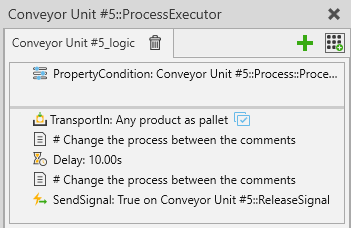 When Process/ProcessModeling is enabled, the conveyor also exposes properties for the resource's approach direction and offset, a toggle to show the resource location marker, and a RecreateTemplate action for restoring the default process template if it's been edited beyond recovery.
Decision points
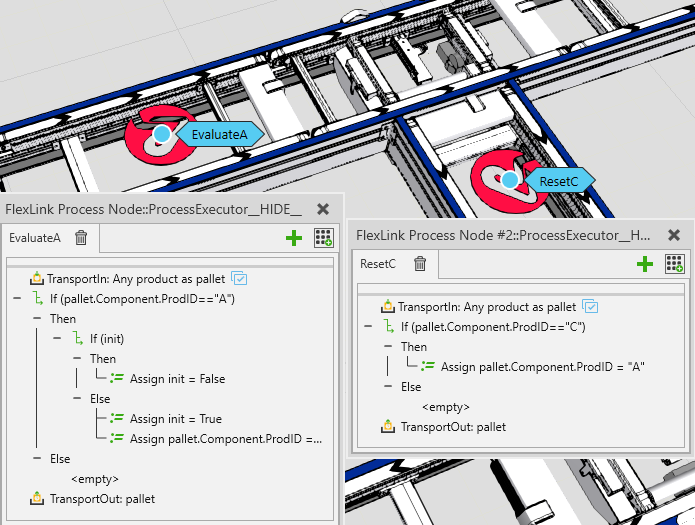
A ProcessExecutor on a conveyor always stops the pallet. If you need to make a routing decision without stopping the pallet, add a ProcessNode from the Simulation Toolbox / Processes eCatalog.
Typical use: rewrite a pallet's ProdID on the fly, just before a transfer, based on custom logic - the transfer then routes on the new ID.
InOut Workstations
A conveyor connected to the InOut side of a transfer needs extra logic to reverse its flow when releasing a pallet back out the way it came in.
Reverse flow on a conveyor is controlled by a hidden boolean property, Build::Reverted:
- When a transfer sends a pallet to an InOut conveyor, it sets Build::Reverted on that conveyor automatically.
- When you release the pallet back to the transfer, your workstation logic must toggle Build::Reverted first.
The simplest way to toggle it in Process Modeling:
- GetProperty - fetch Build::Reverted from the conveyor into a variable.
- Assign - write the negated value back with the expression Property = !Property.
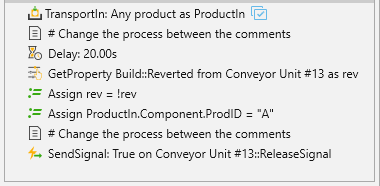
It's also good practice to reassign the ProdID after an InOut workstation, so downstream routing sees the correct identity for the pallet's new direction of travel.