
Applies to FlexLink Design Tool.
The components for MTT have a lot of rules to make sure that a module is possible to build. The suggested way to work with MTT in FLDT is to build one module at a time and keep track of the messages that appear when going through the different steps of designing a module.
Within each Module it is recommended to go through these steps, between each step handle errors that might appear due to collisions or exceeding limits of the module.

To be able to order a MTT system it is required to have drawings for the modules, when the design is complete, proceed with these steps for the layout. It is possible to send the layout to FLQT and Component Store without doing these steps. But you will not be able to place the order without doing this step.

For simulation in MTT please read Simulation for MTT
Frame component
The frame component in FLDT exists in two versions, one for one level and one for two levels.
The frame is also the definer of a module within FLDT, meaning that everything that is connected on this frame will be part of the module, such as conveyors, transfers, satellites and supports.
The configuration of a frame is done by following the tabs in the Component Properties. Starting with FlexLink, followed by Level1, Level2 (if two level frame) and Controls.
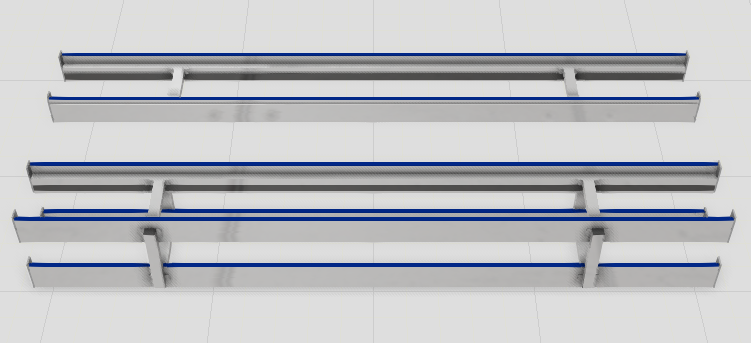
FlexLink
These properties define the general configuration for the frames in the module (1 or 2). The properties ESD, TslotCovers and DustProtection control these settings on all other components in the Module that might use them, such as Satellites, Transfers and Conveyors.
- FrameLength: Defines the length of the frame in steps of 1000mm or use Custom Length to set a specific value. Minimum length of a Frame in FLDT is 1000mm, if a shorter distance is required consider using a Satellite.
- ESD: Defines ESD or not on the module.
- TslotCovers: Defines if there are tslot covers on all the frames in the module.
- DustProtection: Defines if there are DustProtection on all the frames in the module.
- Level2Height (if two level frame): Set the height difference between Level1 and Level2.
- CustomVerticalBeam (if two level frame): Enables possibility to set custom distances or remove vertical beams in the frame.
Level1 and Level2
Level1 represents the properties you can define for the top frame of a module, if the frame is for only one level then this is for the only level, but if the frame has two levels then Level1 is for the top level and Level2 is for the bottom level.
- Direction (only on Level2): Define the direction of Level2, either same flow as Level1 (Forward) or an opposite flow (Backward).
- Conveyors: Defines the number of conveyors on this level.
- ConveyorX: Defines length for the Xth conveyor on the level. Either in available length with steps of 500mm from the dropdown menu or set a custom length. Note that the last conveyor on a level is not editable but instead the result of the frame length minus all previous conveyor lengths.
- ConveyorXFlipDirection: Flips direction of the Xth conveyor on the level. FlipDirection for a conveyor will change the conveyor to drive backwards, meaning that the intended flow is the same but the motor is pushing the chain rather than pulling it.
- AllowLevel2Connection (only on a one level frame): Defines if the frame can connect to level1 or level2 of a two level frame. In order to connect a one level frame to level2 of a two level frame then this checkbox has to be enabled on the one level frame.
- CustomCrossbeam: Enables the possibility to modify the position of crossbeams on the level.
- ProcessSpeed: Set speed in m/min of conveyors and transfers on this level of the frame. Note that this will not change the speed on conveyors on satellites.
- PopulateConveyors: Loads conveyors to the level and connect them on each defined slot.
Controls
It is recommended that setting of Controls is done when all the mechanical aspects of the Module are done, including connecting transfers and potential satellites. Please note that all Control units are locked in the 3d world to avoid unexpected disconnects. This will prevent movement of the entire module if selected. Too move an entire module, either select the frame only or unlock the locks for control components.
- ControlSide: Define which side control units are positioned on as well as the Motor position for the conveyors in the frame.
- IncludeElectricalInstallation: Defines if this module should have Power Supply Units and if cables are included in the bill of material when ordering.
- PopulateControlUnits: Pressing this button will load the required control units for this module based on what is connected to the module. If there already are Control Units on the Module these will be replaced.
- When Control Units are loaded these options are available:
- SCDCXLocation (if two level frame): Defines the location of the Xth SCDC, either Upper or Lower frame.
- SCDCXDistance: Defines the distance of the Xth SCDC from the start of the frame.
- SCDCXDirection: Defines the orientation of the Xth SCDC, either LEDS visible from above or LEDs visible from below.
- PowerSupply1Distance: Defines the distance of the first Power Supply from the start of the frame. If there is a second Power Supply it is set to be 187mm away from the first Power Supply. If there is a Cable Duct on the Module then that is positioned 137.5mm before the first Power Supply. The Power Supplies are positioned on Level2 if there are two levels on the frame.
- RemoveAllSensors: Pressing this button will remove all conveyor sensors in the module. Note that this action will have to be restored by manually setting the desired sensors on each Conveyor again.
Satellite component
The satellite component is in reality a frame but shorter and not definer of a module. The satellite can therefore not attach any control units. It can only be connected to a transfer and will be part of a module through such a connection.
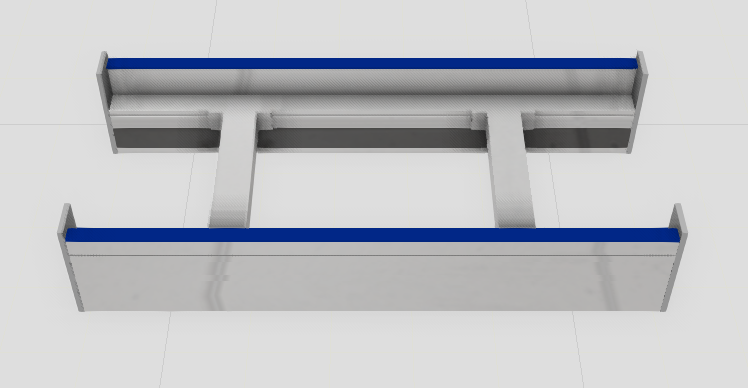
- Length: Can only be set when not connected on either side. Maximum length of a satellite is 1000mm, if a longer frame is required use Frame One Level (will be a separate module).
- ConveyorFlipDirection: Flips direction of connected conveyor.
- ModuleConnection: Defines which module the satellite belongs to, either the module on the Incoming side or the module on the Outgoing side.
- CustomCrossbeam: Enables the possibility to modify the position of crossbeams on the satellite. The number of crossbeams will range between zero and two depending on the length of the satellite.
- CustomVerticalBeam: If two satellites are positioned on top of each other the top satellite can modify the position or use of VerticalBeams. The distances and sides are from the start of the satellite.
- PopulateConveyors: Adds a conveyor to the satellite.
Conveyor component
The conveyor component inherits properties from the frame or satellite it is connected on and should therefore be set on that component, these are properties PalletSize, Length, ESD, FlipDirection and in the case of connected to a frame also MotorPosition.
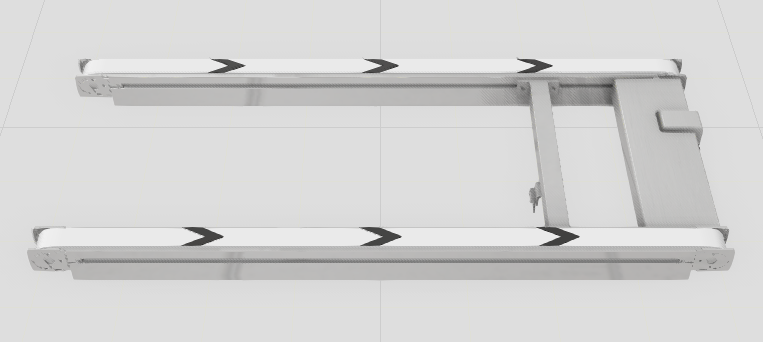
- MotorPosition (if connected to a satellite): Defines if the motor is positioned on the Left or Right side of the conveyor.
- Sensor: Defines what sensors are on the conveyor [No sensor, Drive end sensor, Idler end sensor, or Drive and Idler end sensor], different options will be available depending on length of the conveyor and pallet size.
- RFID: Defines if an RFID will be placed by a sensor, this is only available if there is any sensor on the conveyor. In the case of two sensors on the conveyor then an additional option appear to define by what sensor the RFID should be placed.
Transfer component
The transfer can be connected on a conveyor and divert or merge the flow to both left and right side. The traffic situation of the transfer is defined by four properties (LeftMode, RightMode, DownstreamMode, UpstreamMode). The result of these properties will give the FunctionDescription of the transfer and define available connections. The drop down menu for these properties will only display available options at any time. As soon as either Left or Right side is connected to anything that Mode property will not be possible to edit until it is disconnected.
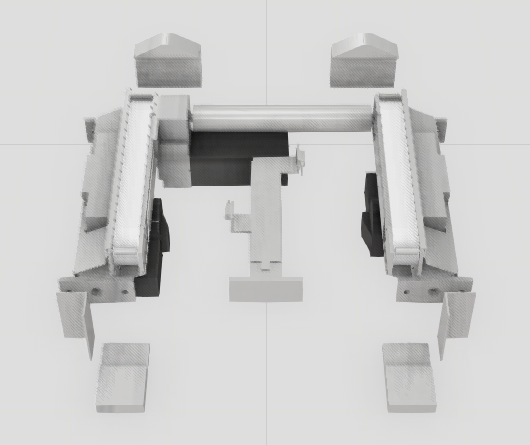
- TransferOrientation: Defines position of the motor in the transfer, this option is only editable for some transfer types and automatically set for others.
- LeftMode: Defines traffic to the left side. Possible options are In, Out, InOut and Nothing. If In or Out is selected then the transfer can connect to either a frame or a satellite but if InOut is selected it can only connect to a satellite. Nothing allows no connections on that side.
- RightMode: Defines traffic to the Right side. Same options as for LeftMode
- DownstreamMode: Defines traffic downstream of the transfer along the frame it is on. Possible options are Out and Nothing.
- UpstreamMode: Defines traffic upstream of the transfer along the frame it is connected to. Possible options are In and Nothing.
- QuickExchange: If enabled conveyors which this transfer can send to will warn if they can have a sensor close to the transfer but dont have it.
- RFID: Enable to get a RFID on the transfer.
- PositionOnConveyor: If connected on a conveyor you can move the transfer on this conveyor by typing the distance from the start of the conveyor to the center of the transfer in this field.
- FunctionDescription: Name of the defined traffic situation for this transfer, not editable.
- PositionRelativeTransfer: Helper to align this transfer relative another transfer or frame.
Support component
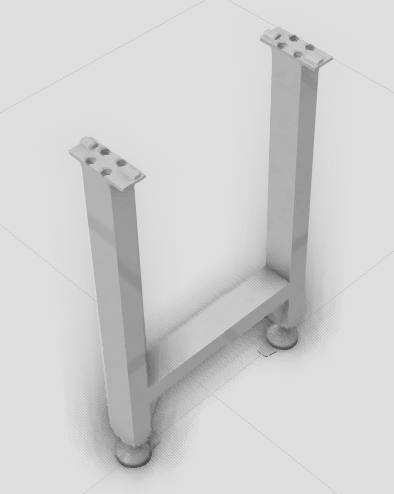
The support can connect to either a frame or a satellite. It will automatically adjust its size to the connected frame or satellite. The height of a support can also be modified with the FloorLevel property.
Pallet component
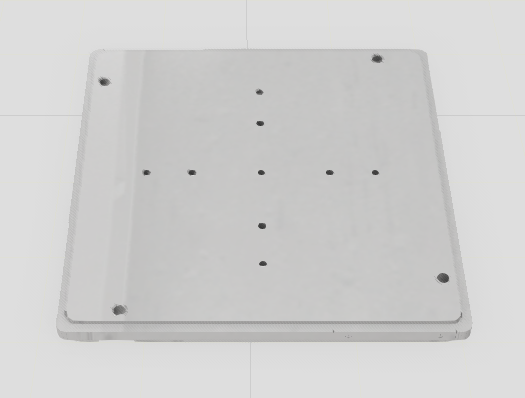
When connected to a conveyor the Pallet will inherit a PalletSize. The pallet component is only used for visualization purposes, it has to be ordered separately.
Messages and how to solve them
- FLDT version is too old to generate BOM of MTT products [Error]: To generate correct BoM FLDT version needs to be at least 10.6.0.0, if you have this error please update your version of FLDT.
- There are too many transfers connected on the module [Error]: The maximum number of transfers on each level of a module is two, if you have this error remove transfers from the module.
- Crossbeam on frame collides with a conveyor or a transfer [Error]: If a crossbeam on a frame or satellite is too close to a conveyor motor or transfer, please adjust either the crossbeams, conveyors or transfer position.
- There are too many satellites connected to the module [Error]: The maximum number of satellites attached to a module is four, if you have this error remove satellites from the module.
- At least one Transfer intersects with a vertical beam [Error]: If a vertical beam on a frame is too close to a transfer, please adjust either the vertical beams or transfer position.
- At least one component in the module has an error [Error]: If any component in the module has error the frame will have this error, fix all errors in the module and this error will disappear.
- At least one requested controller is not connected on the module [Error]: If a SCDC is requested but not connected to the module, try to PopulateControlUnits again.
- At least one requested Power unit is not connected on the module [Error]: If a PSU is requested but not connected to the module, try to PopulateControlUnits again.
- Module requires at least three vertical beams [Error]: A two level frame requires at least three vertical beams, check Component Properties on the frame and make sure at least three vertical beams are in use.
- Module requires four vertical beams due to that two transfers are more than 1140 mm apart [Error]: A two level frame with two transfers that are more than 1140 mm apart requires at least three vertical beams, check Component Properties on the frame and make sure all vertical beams are in use.
- Frame has the wrong number of supports [Error]: A frame that has a support requires two supports on the frame, no more no less. If there is a support on the frame than also one support is required on the satellites, unless the satellite is positioned above another support.
- Supports need to be at least half the module length apart [Error]: The two supports on a frame needs to be separated by at least half the frame length.
- The module is not linked to any controller [Error]: If a frame has a ModuleID but no controllers, please use PopulateControlUnits.
- At least one conveyor in the module is missing an SCDC connection [Error]: If a conveyor in the frame is not connected to a SCDC, either PopulateControlUnits again or manually link this conveyor to an existing SCDC on the Module.
- The vertical cable duct on the module is in collision [Error]: If the vertical Cable duct on the module is colliding with something in the module, either adjust the Power Supply position or modify the position of components in the module.
- The Satellite is not attached to a Module [Error]: If the satellite is not connected to a module. Either connect the satellite to a module or change the ModuleConnection property on the satellite. Double-clicking on the error will ask you to change the ModuleConnection.
- The Satellite requires connections in both ends [Error]: If a satellite is placed over another satellite but not exactly over it it will require a transfer connection in both ends. Connect a transfer on the other end.
- Satellite requires at least one vertical beam [Error]: If a satellite can have vertical beams, it requires at least one vertical beam.
- Transfer is outside of required range on conveyor [Error]: If a transfer is too close too an edge of a conveyor, please adjust the transfer position. Double-clicking on the error will move the transfer too the closest valid position.
- Transfer has an invalid traffic situation, please adjust the modes to have a valid traffic situation [Error]: If the traffic situation of the transfer is invalid it cannot be ordered. This happens if LeftMode and RightMode are Nothing, please change one of them to get a valid traffic situation.
- Transfer is not connected on a conveyor. Please connect it [Error]: If a transfer is not connected on a conveyor. Please connect it on a conveyor.
- A conveyor is not allowed to be longer than 1000 mm when reversed [Error]: A conveyor with FlipDirection enabled cannot be longer than 1000mm, either shorten the conveyor or disable FlipDirection.
- The motor is colliding with an alignment plate, please change direction [Error]: If the motor of a conveyor is colliding with an alignment unit of a transfer, please flip the direction of this conveyor.
- Unit is colliding with the module [Error]: If a SCDC or PSU is colliding with anything on the module, please adjust the positions of Control Units.
- A channel on the power unit is exceeding the limit of 12.5A [Error]: If there are too many slots connected to a Power Supply Unit, use PopulateControlUnits again.
- Support is located more than one third away from the edge of the Frame [Error]: A support needs to be placed within a third of the frame length from an edge, please adjust the position of the support.
- Transfer is not connected on all expected sides [Warning]: If a transfer is not properly connected to frame and conveyor on both required sides. Please adjust the traffic situation or reconnect the conveyor or the frame until message disappear.
- Module is missing an accurate drawing [Warning]: There is no Module drawing for this module that is up to date.
- A connected transfer is requesting a clearance sensor, please change sensor option on conveyor [Warning]: If a transfer has QuickExchange enabled this message will appear on all conveyors that are directly downstream from that transfer that can have a sensor close to the transfer but does not have it. Please adjust sensors on these conveyors.